How to Download Cursive Handwriting as Transparent PNG or SVG
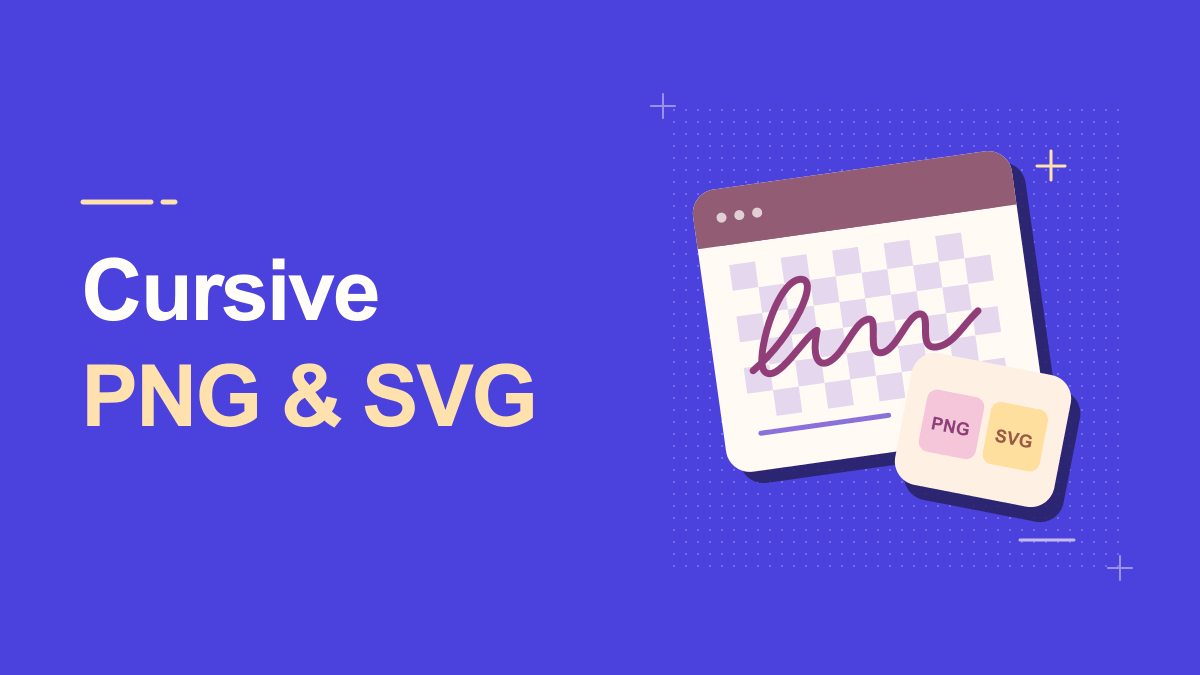
A cursive name looks perfect in an online preview, but when you place it on a poster, a white rectangle appears behind it. That common problem is usually about file format or transparency settings, not the handwriting itself. A transparent PNG allows the design behind the lettering to show through; an SVG can preserve vector edges when supported. This guide explains how to plan an export, verify that the file is genuinely transparent, and choose the right format for social graphics, invitations, and printable labels.
Understanding Download Cursive Handwriting Transparent Png
PNG and SVG solve different problems. PNG stores a raster image made from pixels; it can support an alpha channel for transparency. SVG describes scalable vector graphics, although an individual SVG could still contain raster imagery. A generator that offers 'download' may provide only some formats. Do not assume a button produces SVG because the preview is sharp, or assume a white-looking preview is evidence of a white background. Inspect the downloaded file in a second application.
A cursive handwriting generator can make typed letters appear as joined script, but a font-based result is not the same as a person writing by hand. The character shapes, spacing, and joins repeat predictably. That is useful for invitations, practice material, headings, and decorative signatures, provided you do not misrepresent a generated mark as proof of consent or identity.
Practical Steps for Download Cursive Handwriting Transparent Png
1. Prepare the text with enough margin
Enter the name in the Cursive Handwriting Font Generator. Choose a readable script and leave space around loops and descenders. If the text touches the canvas boundary, it may clip even before the file is exported.
2. Select transparent background where available
Look for a background or transparency option if the tool supplies one. Some editors use a checkerboard to represent transparency. Others preview a white backdrop but save only the lettering. The reliable test is opening the file over a contrasting color, not judging the generator window alone.
3. Choose PNG for simple placement
A PNG works well when the destination is a social graphic, presentation slide, or print mockup. Export at a resolution suitable for the final display. Enlarging a small PNG later can produce fuzzy edges, especially around fine cursive strokes.
A helpful way to check this step is to pause before publishing: look at the preview at actual phone size, confirm the main words are still readable, and try a plain-text version if a platform changes the characters.
4. Choose SVG for flexible scaling
If the live tool offers genuine SVG export, it can be useful for larger print sizes and logos. Check that fonts or paths are represented in a way your editing software can open. An SVG containing an embedded low-resolution bitmap will not become infinitely sharp merely because its extension says .svg.
5. Test and archive the exported file
Place the result on both light and dark backgrounds. Check for a white box, unexpected color changes, missing letters, or clipped flourishes. Keep the original editable text, chosen style, and final file together so that a corrected spelling can be generated consistently.
Keep a copy of your original wording outside the generator. That makes it easy to revise the message, compare versions, or retry a simpler style when the destination does not support every symbol.
Practical Examples You Can Adapt
Transparent signature on a photo
Use a dark or white cursive name over a photographic background. Inspect contrast in the busiest part of the image and add a subtle solid overlay if the name disappears. A transparent PNG is convenient here, provided it has enough pixels for the intended display.
Printed event labels
For a batch of consistent name labels, SVG may be useful when the software accepts it, because the lettering can scale. Check final stroke thickness and printer requirements. If only PNG is available, generate the text at a larger size rather than upscaling a tiny image.
Why Download Cursive Handwriting Transparent Png Can Look Different
There are two common outputs: decorative Unicode script that can be copied as characters, and a rendered image or vector file that preserves the chosen letterforms. For print and graphic design, an image or SVG can maintain visual consistency. For a social caption, copyable characters may be more convenient but can display differently across platforms.
White box appears after import
The export may have an opaque background, or the target application may handle transparency unexpectedly. Recheck the export setting and test the file in another viewer. A white preview is not enough to diagnose the issue.
Letter edges look jagged
You may have exported at low resolution or enlarged the image excessively. Regenerate at the final dimensions or a higher resolution if supported. For vector workflows, use a genuine path-based SVG where available.
File Quality Checks That Prevent Rework
A transparent preview can be misleading. Open the downloaded image in a second editor and place it over a colored rectangle. If the rectangle is visible around and between the letters, the alpha channel is probably working. Next, enlarge the artwork to the planned display size and inspect curved strokes. Raster edges can become soft when scaled beyond their original pixel dimensions, while genuine vector paths should remain clean. Also make sure the file has not clipped the top of a capital or the tail of a lower-case letter.
When preparing the asset for a website, think about loading speed as well as visual quality. A tiny decorative name does not need an enormous image file. Export for the actual display dimensions and use a format your site can serve efficiently. For print, ask the printer about preferred formats and color specifications. Keep the source wording and style settings so that a last-minute spelling correction does not require reconstructing a flattened image by hand.
Practical Tips for Download Cursive Handwriting Transparent Png
Think about the destination before clicking Download. For a small avatar, pixel dimensions and contrast are critical. For a large print, scalable paths and stroke detail matter more. For a website, file size also matters; an oversized transparent image can delay loading. Save a small preview and a high-quality master, then test on the actual background color that the final design will use.
Always inspect loops and joins at the intended final size. A delicate font that looks beautiful at 80 pixels may blur at 12 pixels or fill in after printing. Test capitals, lowercase connections, punctuation, spacing, and descenders such as g, j, and y. Legibility matters more than the number of flourishes.
Frequently Asked Questions
Is a transparent PNG the same as a white PNG?
No. A transparent PNG can allow the background underneath to show. A white PNG contains opaque white pixels unless transparency is actually encoded.
Is SVG always better than PNG?
No. SVG is excellent for many vector graphics, while PNG is widely supported for raster artwork. The better format depends on the destination and whether the SVG contains real scalable shapes.
Can I edit the wording after downloading a cursive SVG?
The exported SVG contains drawn letter outlines. A vector editor can reshape those outlines, but it cannot edit them as a sentence. Change the wording in the generator and download a fresh SVG.
Try It Yourself
Once you know the outcome you want, open the Cursive tool, enter a short sample, and adjust the result until it remains useful in its destination. For a related approach, read this companion guide. Try the simplest version first, then add decoration only where it improves the message.